
Datum Plan
Plan, schedule, track and report your projects: one small, fast app for Windows.
For Project managers, planners, engineers and contractors.
What Datum Plan is
Datum Plan is a desktop scheduler for project managers, planners, engineers and contractors. You enter tasks in a sheet that works like a spreadsheet, link them, and the engine works out the critical path to the minute, with working calendars, constraints, every link type and resource levelling.
As the work goes on, you record progress and actuals against up to 11 baselines and see where the project stands: a tracking Gantt, earned value and earned schedule, S-curves built from each period's progress, manpower by trade, a look-ahead with a constraint log, a dashboard and progress reports. A schedule risk analysis runs the plan a thousand times to show how likely each finish date is and which tasks drive it. Sheets inside the plan work like Excel and read the schedule live by name, for your own reports and vendor lists (with country flags), and dashboards of your own lay them out on one page, so nothing is copied by hand. Plans open from common scheduling files (XML and XER) or from Excel and CSV sheets, export to Excel with formulas as well as XML, XER and MPX, and every view prints to PDF.
- Step 1
Enter the tasks
Type tasks, durations and resources into the sheet, or open an existing plan.
- Step 2
Link and schedule
Link the tasks; the engine works out dates, float and the critical path.
- Step 3
Track and report
Save a baseline, record progress, and print the Gantt, the S-curve and the reports.
What it does
- A
A task sheet that works like a spreadsheet, with formula columns and Sheets tabs.
- B
Critical path to the minute: calendars, constraints, all link types, levelling with a preview of what moves.
- C
Resources, man-hours and costs with workload and manpower by trade; Tracking Gantt with 11 baselines; earned value, earned schedule and S-curves from each period's progress.
- D
Schedule risk analysis: how likely each finish date is (P50, P80), criticality and the tasks that drive the finish.
- E
A 3-week look-ahead with a constraint log; progress by rules of credit or installed quantities.
- F
Dashboard, progress reports and a report builder; print to PDF from every view.
- G
Network Diagram on a whiteboard canvas; timeline with a zoom box; Excel export with formulas.
- H
A command line and an MCP server, so scripts and AI assistants can build and update plans with the same operations as the window.
- I
A step-by-step guide with pictures, in English and Simplified Chinese (Help › Guide).
- J
Sheets that work like Excel and read the plan live: click cells into formulas, 490 functions suggested as you type, plan data by name (Tasks[Finish], ProjectFinish, SPI), live task lists, country flags.
- K
Your own dashboards: numbers, progress rings, charts, tables and country flags from the plan and your sheets, laid out as you like, several per plan.
Screens
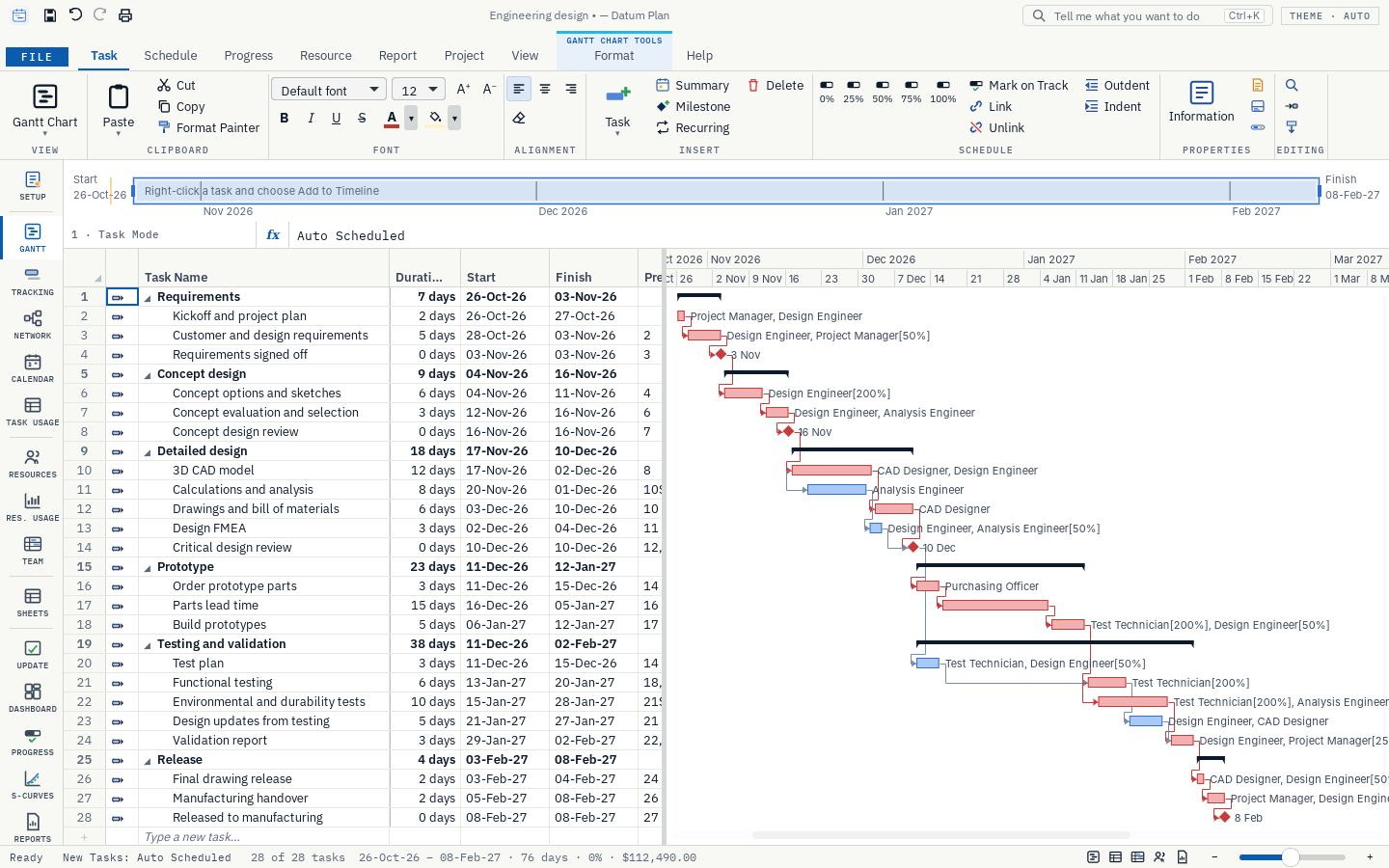
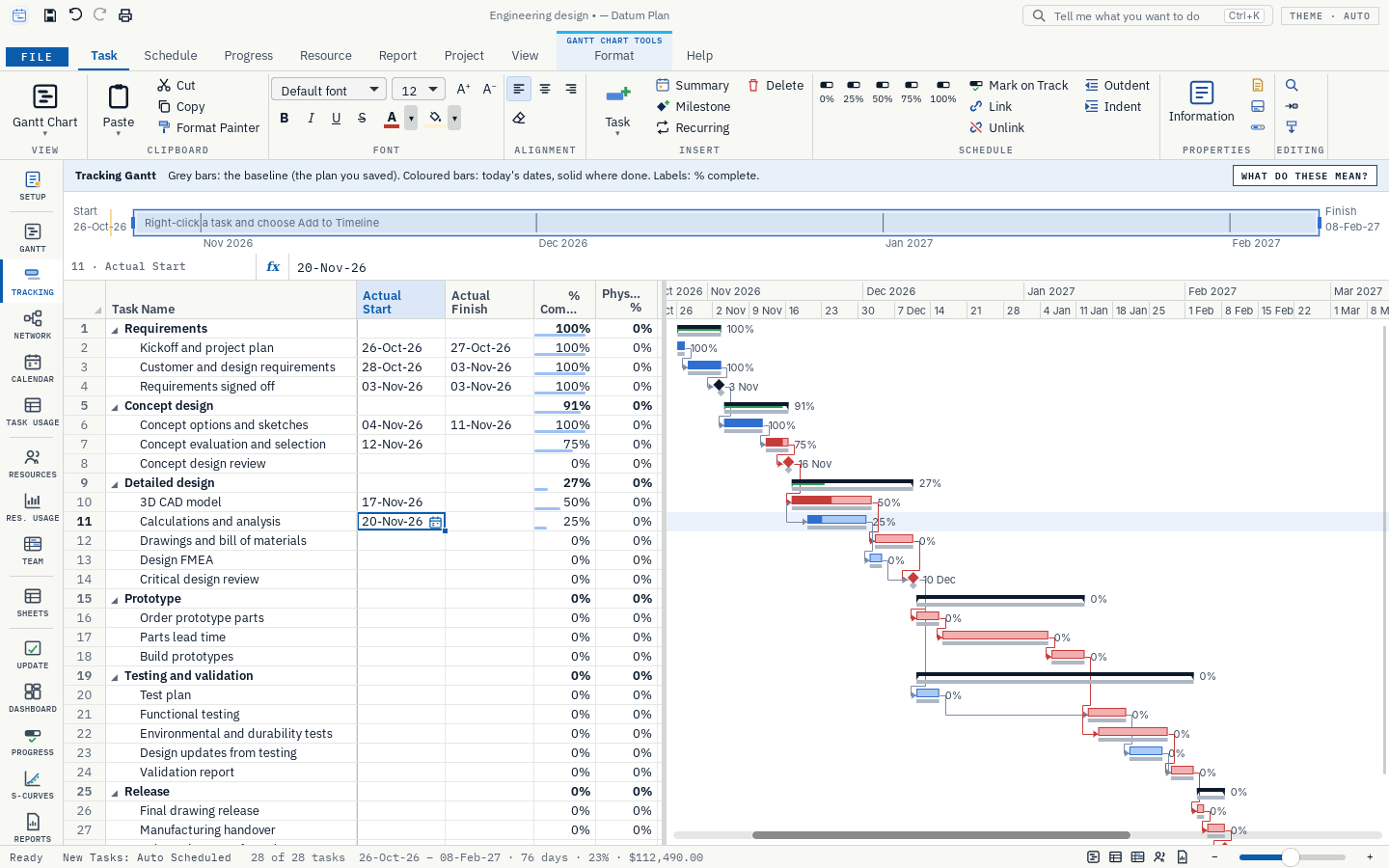
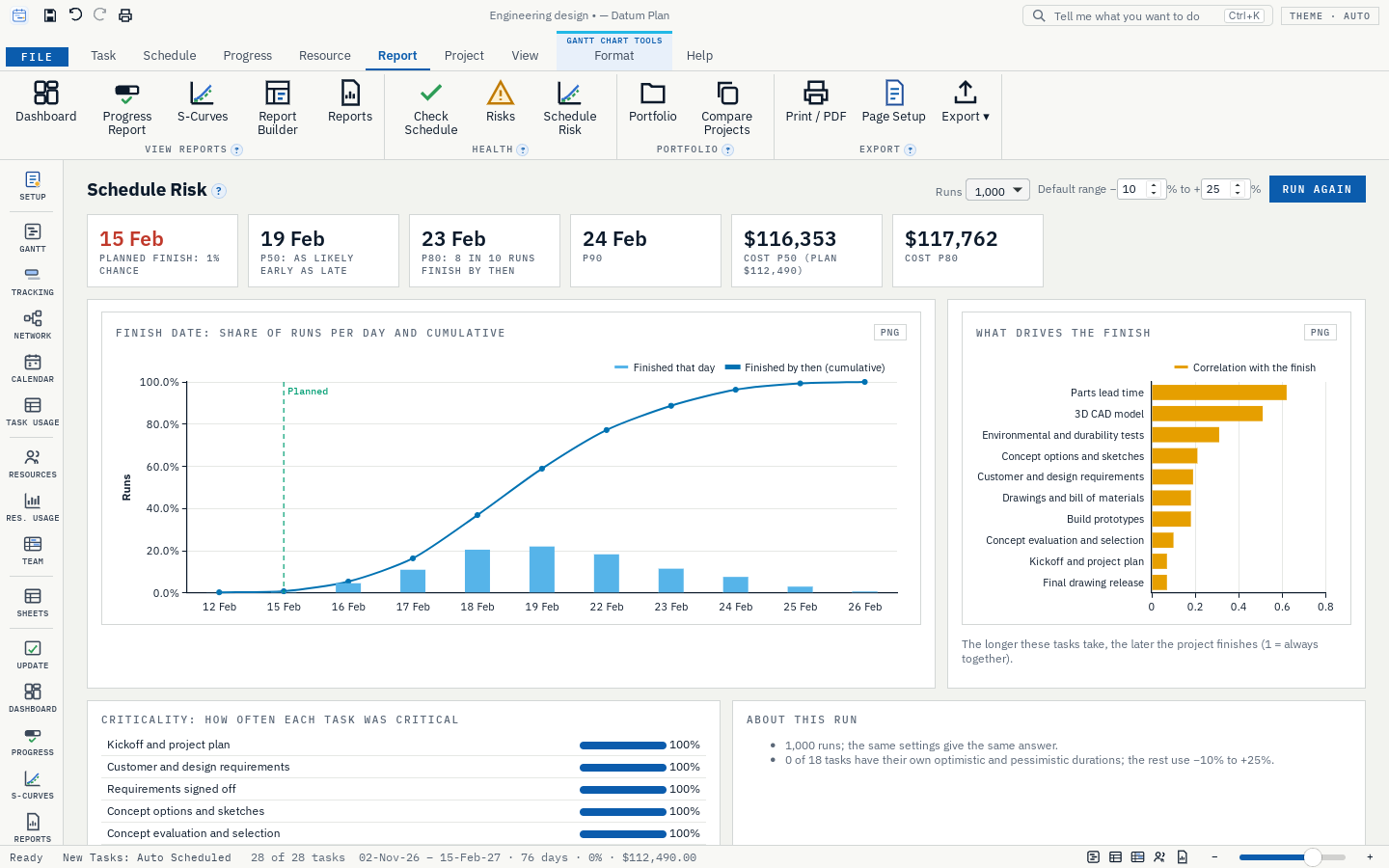
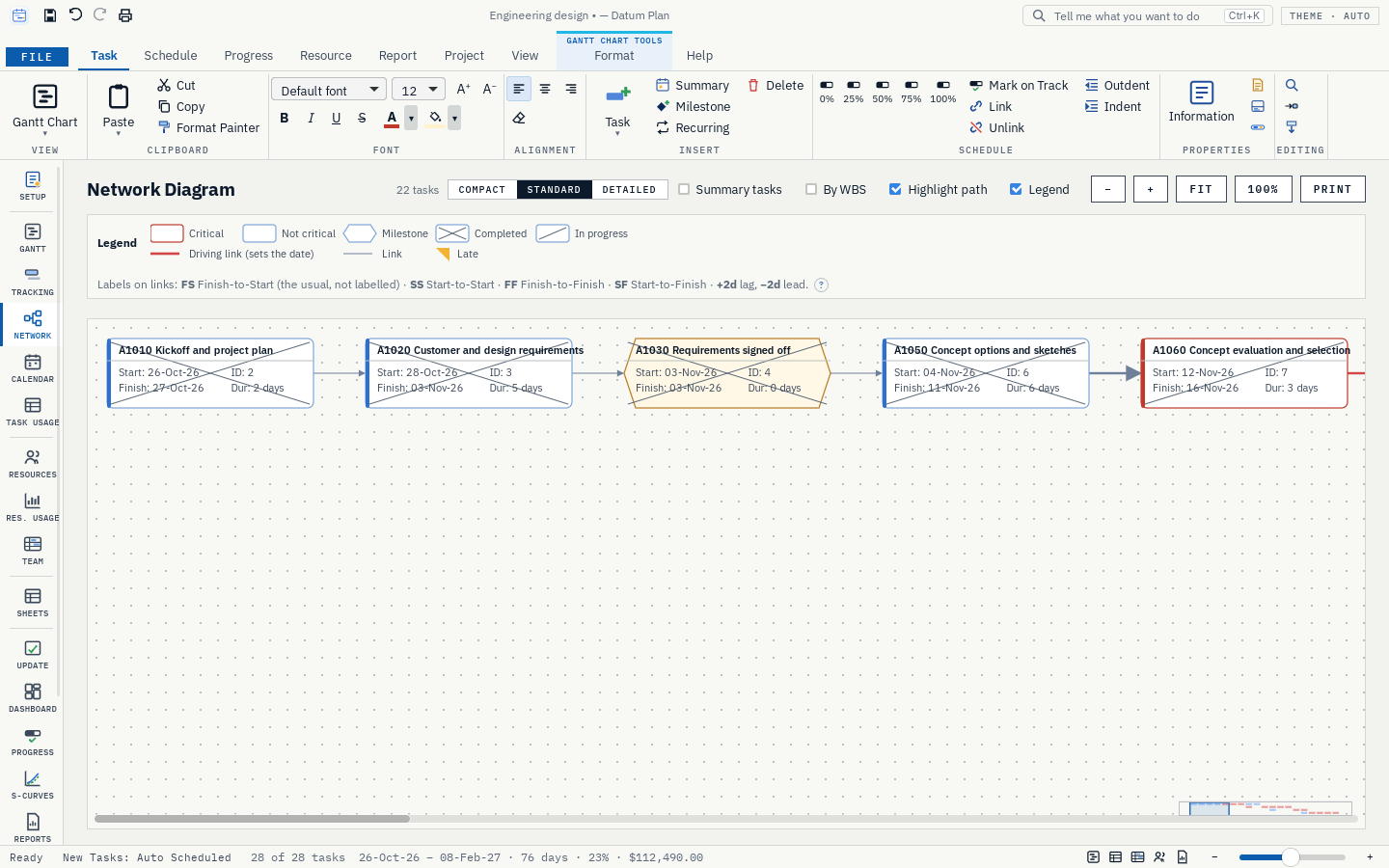
Roadmap
- Nextv0.5
Schedule quality and scenarios
- A schedule health score with its trend; baseline compare with ghost bars; a log of logic changes; a milestone trend chart.
- What-if scenarios: branch a plan, change it, compare side by side, keep or discard.
- Delay analysis: as-planned against as-built, time impact, windows.
- Line of balance and takt planning for repetitive work.
- Laterv0.6
Portfolio and hardening
- Master plans with subprojects, one resource pool shared by several plans, links between projects, a portfolio dashboard.
- Smooth with 100,000 tasks; a signed installer (no Windows warning); crash reports.
- Exchange files checked against real files from other tools; custom fields and codes in exported files.
- Laterv0.7
Working together
- Shared plans in a shared folder, with check-out per WBS so no one overwrites anyone.
- Comments on tasks, an audit trail, progress updates from a phone.
- Goalv1.0
Stable
- Text styles by task type, saved custom views, a user guide, a frozen file format.
Releases
v0.5.3Your own dashboards: build the board your client or manager wants, inside the plan, always up to date.
- Several dashboards per plan, as tabs on the Dashboard page next to the built-in Project dashboard. + New dashboard makes a blank one or starts from a template: Client dashboard, Weekly progress or Vendors and countries. Rename, duplicate or delete them from Dashboard ▾.
- Tiles you lay out yourself. Edit layout, then + Add tile; drag tiles to reorder them, and set each one's width (a quarter to full width) and height (one to four rows).
- Number: any formula, as in Sheets (
=SPI,=ProjectFinish,=COUNTIF(Tasks[Late],TRUE),=Vendors!B4), with a format, a second line and an optional rule that turns it green or red. - Progress ring: a percentage as a ring.
- Chart: one of the plan's charts (S-curve, progress per period, progress by phase, cost and earned value, manpower), or a chart of a sheet range or formula: columns, stacked columns, bars, line, area, doughnut or pie.
- Table: a plan list (milestones, late or critical tasks, starting next period, completed this period), or a sheet range or formula; a column of countries shows their flags.
- Countries: flags with how many resources or vendors come from each country.
- Text: a heading or a note.
- Number: any formula, as in Sheets (
- Dashboards are saved with the plan, follow every change and print with Print / PDF.
- A new name for formulas:
PlannedPercent, where the baseline says the plan should be at the status date (0–100). - The guide has a new section on dashboards, in English and Chinese.
v0.5.2Better-looking charts that are never cut off.
- A new look for every chart (Dashboard, S-Curves, Manpower, Schedule Risk, reports, Report Builder): smooth lines with a soft fill under the actual progress, rounded bars, light horizontal gridlines instead of heavy black axes, round legend markers, a dark rounded tooltip and a status-date label, in a clearer set of colours.
- No more cropped charts. Charts follow their box when the window, the sidebar or the panes change size, and they are laid out again for printing, so a printed or PDF dashboard shows every chart whole (two per row).
- Charts in the same row are the same height, with no empty band under the shorter one.
- A chart with nothing to show says so ("No costs in this plan yet", "No hours assigned yet") instead of drawing empty axes.
- Manpower's forecast joins its weeks with straight lines (a smooth curve suggested values between the weeks).
- The guide's pictures show the new charts.
v0.5.1Two fixes.
- Scrolling the schedule no longer sticks. The task sheet and the Gantt chart scroll together; each one used to echo the other's position back a moment late, so smooth scrolling fought itself and seemed to get stuck (worst near the end of the plan). Now a pane that was moved by the other does not echo it back.
- Tell Me (Ctrl+K) no longer hides the window. The search box now opens over the plan with the window dimmed behind it, instead of a blank page.
v0.5.0Sheets that work like Excel and read the plan live: your own reports and vendor lists inside the plan file, with nothing copied by hand.
Formulas as in Excel
- Click cells into a formula. Type
=, then click a cell or drag over several to add them (A1, A1:A5), or click another sheet's tab; each reference gets a coloured box. F4 cycles the$anchors, and Enter closes any bracket left open. - Suggestions as you type: all 490 functions, the plan's names and table columns, with Tab to insert. Inside a function, a hint shows its arguments with the current one underlined.
- Σ AutoSum (Alt+=; also Average, Count, Max, Min) and fx Insert Function, which finds a function by name or by what it does.
- Fill and paste carry formulas: the fill handle, Ctrl+D, Ctrl+R and copy and paste move references as Excel does (
=A1*2becomes=A2*2); Cut moves cells. - Insert and delete rows and columns (right-click, the toolbar, Ctrl+Shift++ and Ctrl+−); formulas on every sheet follow, and references to deleted cells show
#REF!. Renaming a sheet updates the formulas that name it. - Number formats: Excel format codes (
#,##0.00,0.0%,dd-mmm-yy, custom codes), more or fewer decimals, currency and the plan's date format. Results of TODAY, DATE or a lookup of plan dates show as dates by themselves, and plan percentages get a % sign. - Results that spill into several cells (FILTER, SORT, UNIQUE, SEQUENCE…) are shown. Column widths can be dragged or fitted with a double-click. Pointing at an error explains it.
- Fixed: typing quickly into a cell no longer loses the second key.
The plan, live, by name
Tasks[column]has one row per task (Name, Start, Finish, % Complete, baseline dates and cost, float, Critical, Late, Milestone, Resources, earned value, custom fields…);Resources[column]has Name, Group, Country, Rate, Work, Cost….- Names for the plan's numbers:
ProjectFinish,BaselineFinish,FinishVariance,PercentComplete,SPI,CPI,TotalCost,TasksLate,CriticalCountand more. - Plan Data… puts a live list at the selected cell: milestones, critical, late, unfinished or in-progress tasks, or those starting in the next four weeks, with the columns, order and number of rows you choose. One formula fills the rows and follows the plan.
- Older formulas such as
=SUM(Plan!M2:M200)keep working. Excel export adds the Tasks and Resources tables and the names, so the workbook works in Excel too.
Country flags
- A Country with flag number format shows a country's flag and name: type a code (DE, cn) or a name (Germany, UK).
- Resources have a Country (person, crew or vendor), shown with its flag in the Resource Sheet and readable as
Resources[Country].
Also
- Help › Guide works on computers without a Downloads folder set up (it saves in the home folder's Downloads, Documents or the temporary folder instead).
- The guide's chapter on Sheets is rewritten with two new pictures, in English and Chinese.
- Click cells into a formula. Type
v0.4.4The Datum Plan Guide: a step-by-step guide with pictures, in English and Simplified Chinese.
The guide
- Help › Guide (and a Guide tile on the File page, with a PDF icon) offers the guide in English or 中文. One click downloads it from GitHub, checks it against the release's checksums, saves it in your Downloads folder and opens it. The app itself stays small.
- About 30 pages with numbered screenshots: installing and updating, the window, building a plan (tasks, durations, links, constraints, calendars), people, man-hours and costs, baseline and progress, reports and printing, risk, the look-ahead and manpower, sheets and formulas, files, the command line, a glossary of planning terms and the keyboard shortcuts.
- The Chinese guide keeps the English names of buttons and menus (the app is in English) with their Chinese meaning beside them, and has an English–Chinese glossary.
- The first time Datum Plan starts, a short hint points to the guide. Tell Me (Ctrl+K) finds it too.
Get Datum Plan.
Free and open source (MIT). Installs in seconds for your user account, with no administrator rights, and updates itself from inside the app.