
Datum Schema
Intelligent P&IDs and process flow diagrams: draw, check and list.
For Process, chemical, mechanical, piping and instrument engineers, operators and students.
What Datum Schema is
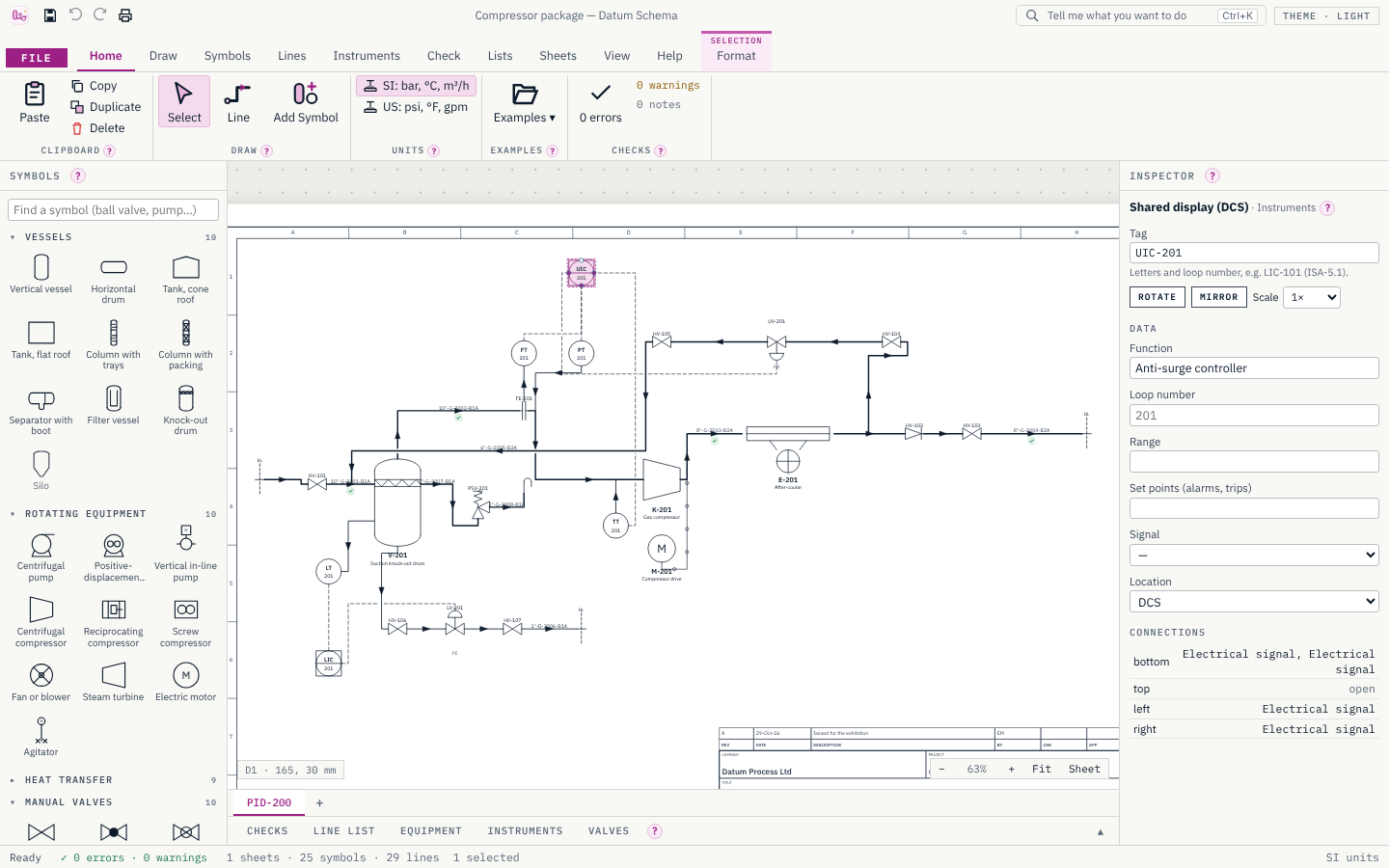
Datum Schema draws piping and instrument diagrams where every symbol and line carries its data and knows what it is connected to. You place real symbols (vessels, pumps, exchangers, valves, instruments) and join them with lines that route themselves; drop a valve on a line and it goes into it, carry a line to another sheet with a pair of off-page connectors.
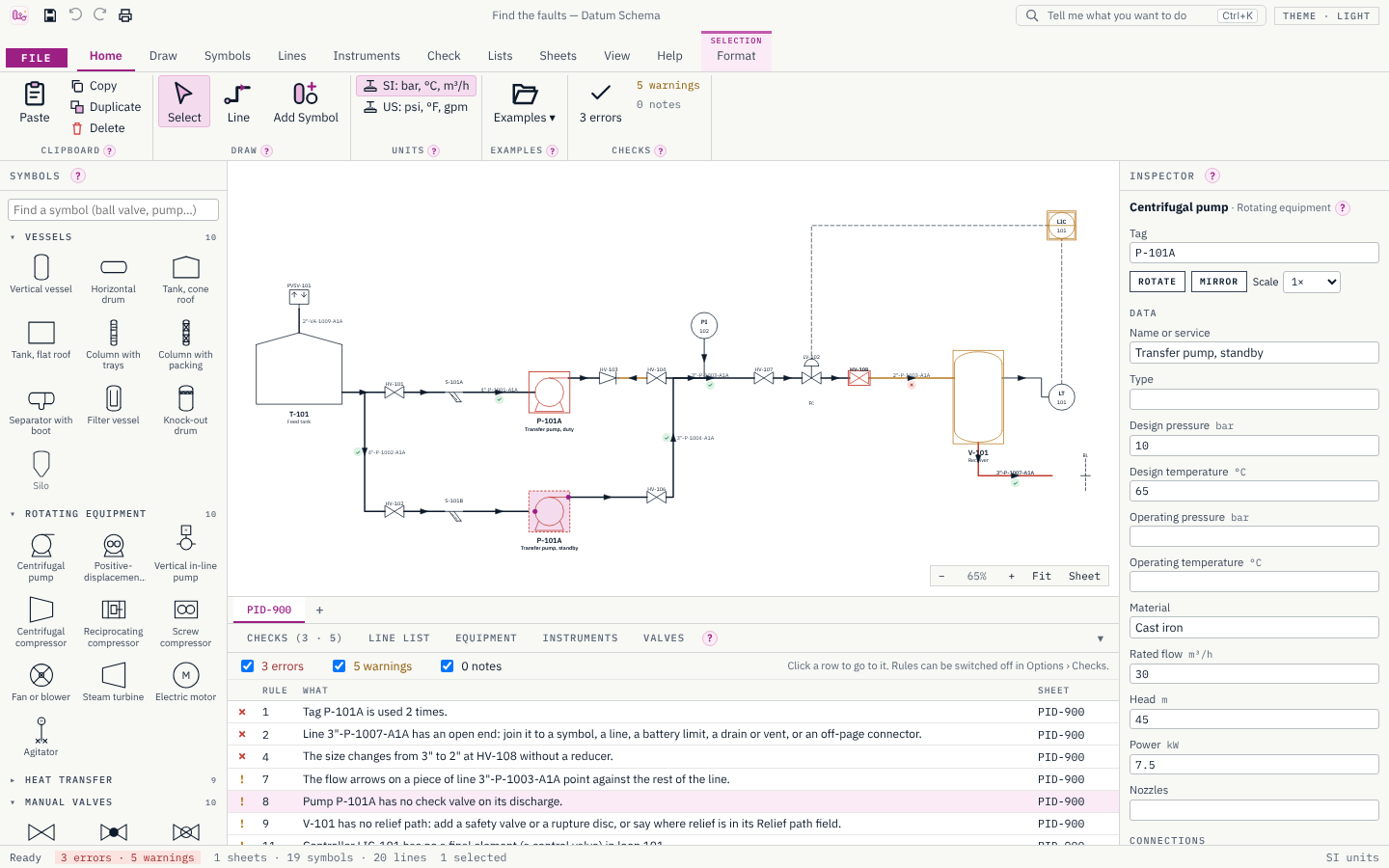
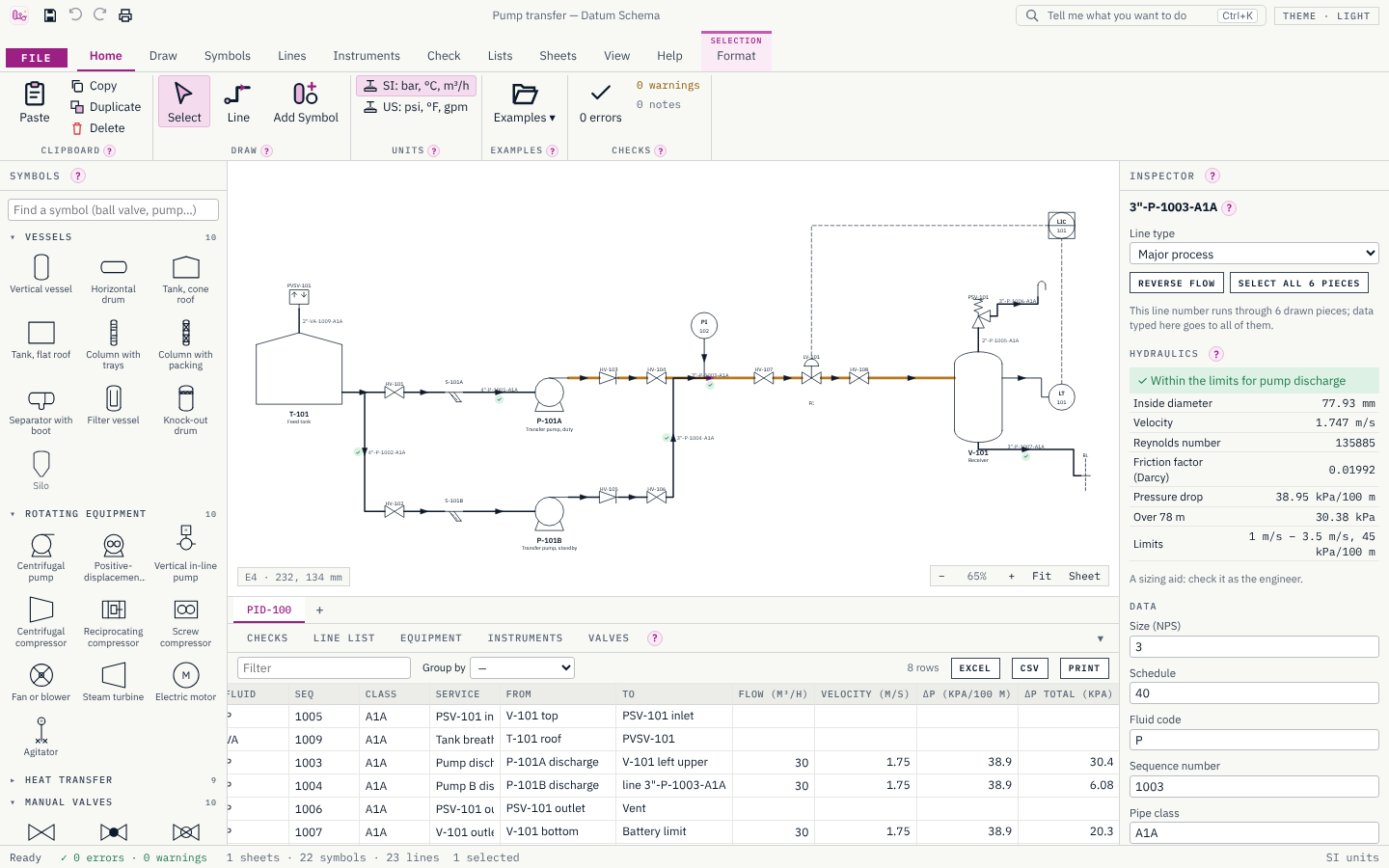
Because the drawing knows its connections, Datum Schema writes the line list, the equipment list, the instrument index and the valve list for you, always in step with the drawing; it checks the drawing as you work (duplicate tags, open ends, size changes without a reducer, pumps without check valves and more); and it sizes every line, with its velocity and pressure drop against limits for its service. Hydraulic results are a sizing aid, checked by the engineer.
Every symbol is a view of a plant object (equipment, valve, instrument, line number) in a plant › unit › area hierarchy, defined by a class library you can extend with your company's attributes. Every change is recorded in the project file, and every instrument, control valve and relief device has a datasheet whose process conditions come straight from the P&ID.
- Step 1
Draw the plant
Drag symbols from the palette and draw lines port to port. In-line valves and fittings split the line they are dropped on; off-page connectors carry lines between sheets.
- Step 2
Check it as you go
Thirteen rules run on every change: duplicate tags, open ends, size and class changes, check valves, relief paths, control loops, velocities and pressure drops. Click an issue to go to it.
- Step 3
Print the drawings and lists
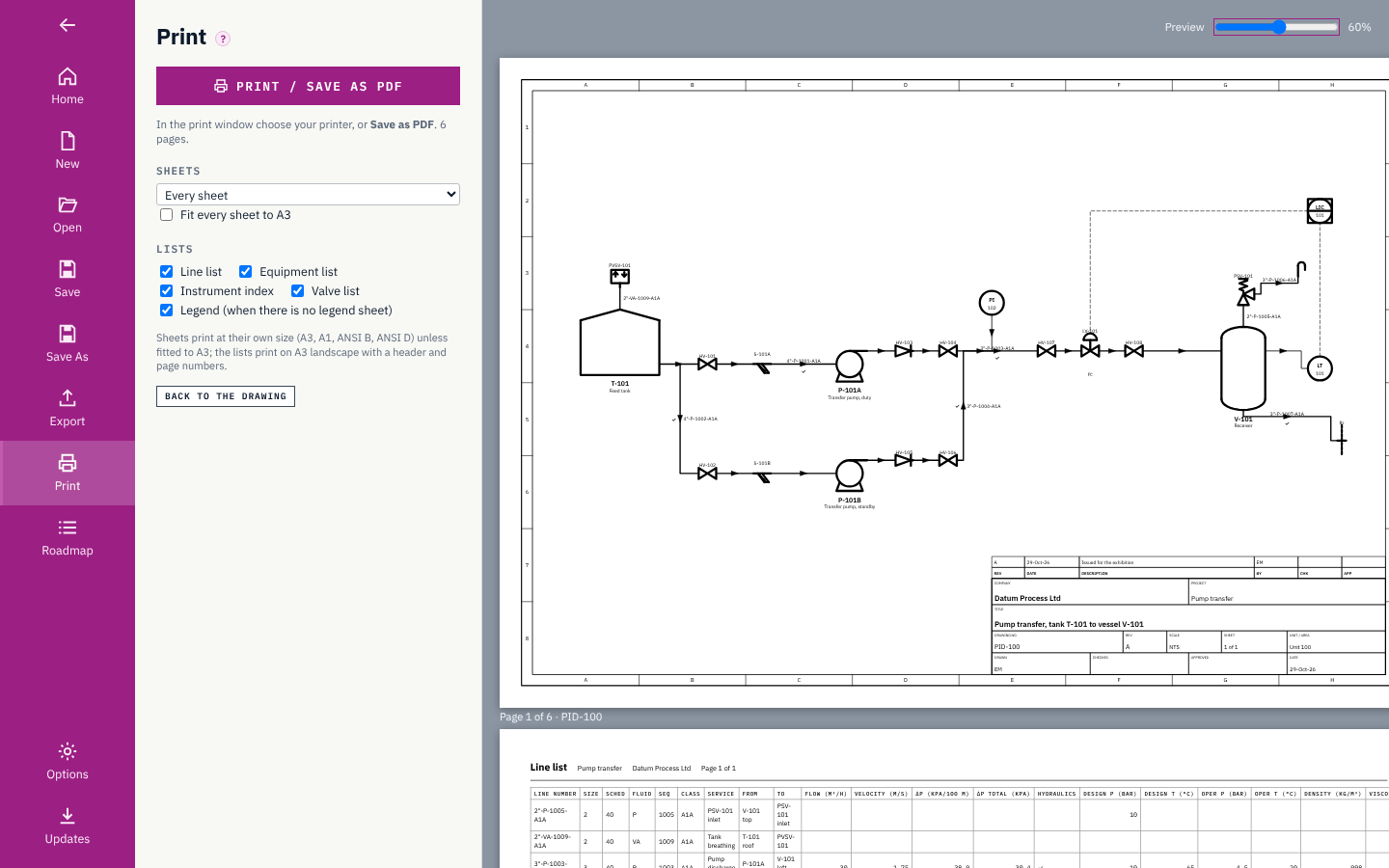
Print the sheets to PDF with their border and title block, export DXF for any CAD program, and the line list, equipment list, instrument index and valve list to Excel or CSV.
What it does
- A
About 80 symbols of our own, following ISO 10628-2 and ISA-5.1
- B
Plant objects in a plant › unit › area hierarchy; symbols are views, every change is recorded
- C
A class library you can extend with your company's attributes
- D
Instrument datasheets with process conditions from the P&ID; revisions with what changed (Δ); your company's form; import from Excel; print and Excel
- E
Loop diagrams drawn from the P&ID, with junction box, cable and I/O wiring
- F
Cause-and-effect matrix read from the interlocks on the P&ID
- G
Lines route themselves at right angles, hop over each other and carry flow arrows
- H
A valve dropped on a line splits it and joins both halves
- I
Off-page connectors pair across sheets; click one to jump to its partner
- J
Live line list, equipment list, instrument index, valve list and datasheet index
- K
Thirteen drawing checks, each with a click to the problem
- L
Line hydraulics: velocity, Reynolds number, Colebrook friction factor and pressure drop against limits
- M
SI and US units; DXF, SVG, PDF, Excel, CSV and the DEXPI P&ID exchange format (export and import)
- N
Automatic tags and loop numbers, renumbering, a legend sheet
Screens
Roadmap
- Nextv0.2
Exchange and links
- Send a line to Datum Pipe as a stress model
- Send a loop to Datum Sim (pump, valve, tank, controller) as a dynamic model
- DXF import of an old drawing as a background
- Laterv0.3
Process flow diagrams
- Stream tables (flow, pressure, temperature, composition per stream)
- Heat and mass balance checks
- Revision clouds and comparing revisions
- Laterv0.4
Instrument documents
- Instrument index reports and loop checks
- Laterv0.5
Company templates and review
- Company symbol and title-block templates
- Project-wide reports (valve and fitting take-off)
- Review comments from several people
- Goalv1.0
Version 1
- User guide
- A validation note for the hydraulics
- Signed installer
Releases
v0.1.12Tell Me shows the drawing behind it, DEXPI import, a check valve's direction, bend points kept, the logo in Excel.
Tell Me shows the drawing behind it, DEXPI import, a check valve's direction, bend points kept, the logo in Excel.
Tell Me (Ctrl+K). The command search now opens over the window, dimmed behind it, instead of hiding everything else.
DEXPI import. File › New › From a DEXPI file opens a P&ID saved in the DEXPI exchange format (XML) as a new project: equipment, valves and instruments with their tags, positions, turns and data (converted to SI from the file's units), each line number with its pieces, valves in their lines and connections to nozzles, and the signal and impulse lines. Files from Datum Schema come back exactly as they were exported; files from other programs are read as far as their content allows, with classes Datum Schema does not know drawn with a stand-in symbol and listed, and drawings larger than the sheet scaled to fit. The DEXPI export now also keeps each symbol's turn and mirror, the exact symbol and the line types, and writes attribute values at full precision.
Check valves the right way round. Check 8 now looks at which way a check valve on a pump's discharge is fitted: one that would stop the flow is reported. Right-click any in-line symbol › Turn round swaps its inlet and outlet, keeping its lines where they are.
Bend points kept. Dropping a valve onto a line keeps the bend points you placed: those before the valve stay on the first piece, those after it go to the second. Deleting the valve joins the pieces with all their bend points.
Logo in Excel. Datasheets exported to Excel carry your company logo (PNG or JPEG) on every sheet.
v0.1.11Drawing fixes, the cause-and-effect matrix, the DEXPI exchange format, and loop diagrams in DXF.
Drawing lines. The line you are drawing is now shown under the mouse all the way: press on a port and drag, or click a port and move. A click on a port starts a line that follows the mouse, snaps to the port under it (ringed), and ends at the next click: on a port, on a line (a branch) or anywhere (an open end). Escape or a right-click drops it. (Before, the line only appeared once it was finished. The box you drag to select several things is shown again too.)
Adding a symbol by name. A double-click on the sheet (or Add Symbol) opens a small search box beside the point instead of a window over the drawing, so you can see where the symbol will go. Type a name or instrument letters, choose with the arrow keys, Enter places it; Escape or a click elsewhere closes it.
Cause and effect. Lists › Cause & Effect reads the interlocks on the P&ID into a matrix: causes down (the switches and transmitters that trip, with their trip settings), effects across (the valves and drives they act on, and what each does: a valve goes to its fail position, a drive stops), and in each cell the interlock that links them. A switch wired straight to a valve counts too. Click a tag to find it; print the matrix on A3 or export it to Excel. The Compressor package example now has a trip to show it: high-high drum level or high-high gas temperature stops the motor and opens the recycle valve.
DEXPI export. Sheets › DEXPI saves the sheet in the DEXPI P&ID exchange format (Proteus XML): equipment with its nozzles, each line number with its segments, centre lines, valves and connections, the instrument functions with their letters and loop numbers, the signal and impulse lines, and the attributes (DEXPI names in SI units). It is a first mapping, checked for well-formed XML and consistent references, not yet with other programs.
Loop diagrams in DXF. The loop diagram window has a DXF button: the frame, the drawing and the texts on their own layers.
v0.1.10Datasheets from Excel, your company's datasheet form, and loop diagrams.
Datasheets from Excel, your company's datasheet form, and loop diagrams.
Import datasheets from Excel. Lists › Import Excel reads a workbook (.xlsx) and matches it to this project's datasheets by tag. It reads a table (a Tag column and one column per value, such as "Manufacturer" or "Set pressure (psig)") or one worksheet per datasheet, as Datum Schema exports them. Columns match by label, ignoring case and a unit in brackets; numbers are converted from the unit given (psi, °F, m³/h…) or from the project's units; choices match however their dashes were typed. A preview comes first: what will change, what is already the same, and what is not imported. Values that come from the line, the vessel or the drawing are never imported; where the file disagrees, the preview says so and where to change them. Blank cells change nothing. Untick what you do not want; the import is one step that Undo takes back. Tags with no datasheet and columns that match nothing are listed.
Your company's datasheet form. File › Options › Datasheets sets the form number, your logo (PNG, JPEG or SVG, up to 200 KB), a footer line, which rows the datasheet shows and the order of its sections. Hidden rows keep their data, are still imported and are still part of each issued revision. Use this layout for new projects makes it the default, for the examples too. The form number and footer go on screen, in print and in Excel; the logo on screen and in print.
Loop diagrams. Lists › Loop Diagrams draws every instrument loop (LT-101, LIC-101 and LV-101 make loop L-101) on an A3 sheet with the title block. Each field device is drawn with its own symbol, with its function, where it is mounted, its range or fail position, and its signal. It is wired through its junction box terminals and cable to its I/O channel in the control system, and on to the controller. Type the junction box, terminals, cable, control system and I/O channel for each device in the loop's Wiring table or in the Inspector; what is still missing is listed and noted on the drawing. Primary elements such as orifice plates are shown beside their transmitter; relief valves are not part of loops. Print one loop from its Print button, or all of them from File › Print. The Inspector has Loop diagram… for any instrument.
v0.1.9Datasheet revisions: issue, track what changed, issue again.
Issue a datasheet. Issue… on a datasheet gives it a revision and a status: Preliminary, Issued for Enquiry, Issued for Purchase or As-built. Revisions run A, B, C… before purchase and 0, 1, 2… from purchase on, suggested for you; type your own if your company numbers differently. Each issue records the date, who issued it (File › Options › Your name) and a note, and it appears in the object's history.
See what changed since. The issue keeps what the datasheet said. From then on every value that changes, whether typed on the datasheet or changed on its line or vessel, is marked Δ; hover it to see what it was at the last revision. The marks clear at the next issue.
Revision block. Every datasheet shows, prints and exports its revisions, newest first. Printed datasheets carry the revision in the header and the title block; the Excel workbook has the revision on each sheet, a Δ column with the old values, and the revision state in its index.
Datasheet index. A new list (Lists › Datasheets) shows every datasheet with its revision, status, date, who issued it and how many values changed since. Click a row to open the datasheet. Issue the … shown issues every datasheet in the filtered list at once, each with its own next revision. Like every list, it sorts, filters, groups, prints and exports to Excel and CSV.
File format. Projects saved by 0.1.9 keep the issued revisions in the file, so 0.1.8 and earlier cannot open them; they ask you to update. Files from earlier versions open as before.
v0.1.8Instrument datasheets, made from the drawing.
A datasheet for every instrument. Every instrument, primary element, control valve and relief device has a datasheet: General (tag, type, measured variable, loop, P&ID, area, line), Process conditions, the instrument's or valve's own data (range, signal, fail position, set pressure…), and a new Specification section (manufacturer, model, process connection, wetted and body materials, electrical connection, hazardous area, IP rating, power supply, accuracy; for control valves the required and rated Cv, characteristic, leakage class, actuator, positioner and trim; for relief devices the orifice area and relieving case). Attributes your company adds in Options › Classes get a section of their own.
Process conditions from the P&ID. The datasheet takes the fluid, flow, density, viscosity, operating and design pressure and temperature, size, schedule and pipe class from the line the instrument measures or sits in, from a primary element it is tapped to, or from the vessel it is mounted on. A controller takes its transmitter's. These values show where they come from and change where they live, so the datasheet and the P&ID never disagree.
Open, type, print, export. Open a datasheet from the Inspector (Datasheet…) or the Plant panel. Type the instrument's own values on it; every change is in the object's history. Print one datasheet from its Print button, or all of them from File › Print on A4 pages with the title block. Excel › Datasheets exports every datasheet, one worksheet each, with an index.
Get Datum Schema.
Free and open source (MIT). Installs in seconds for your user account, with no administrator rights, and updates itself from inside the app.